

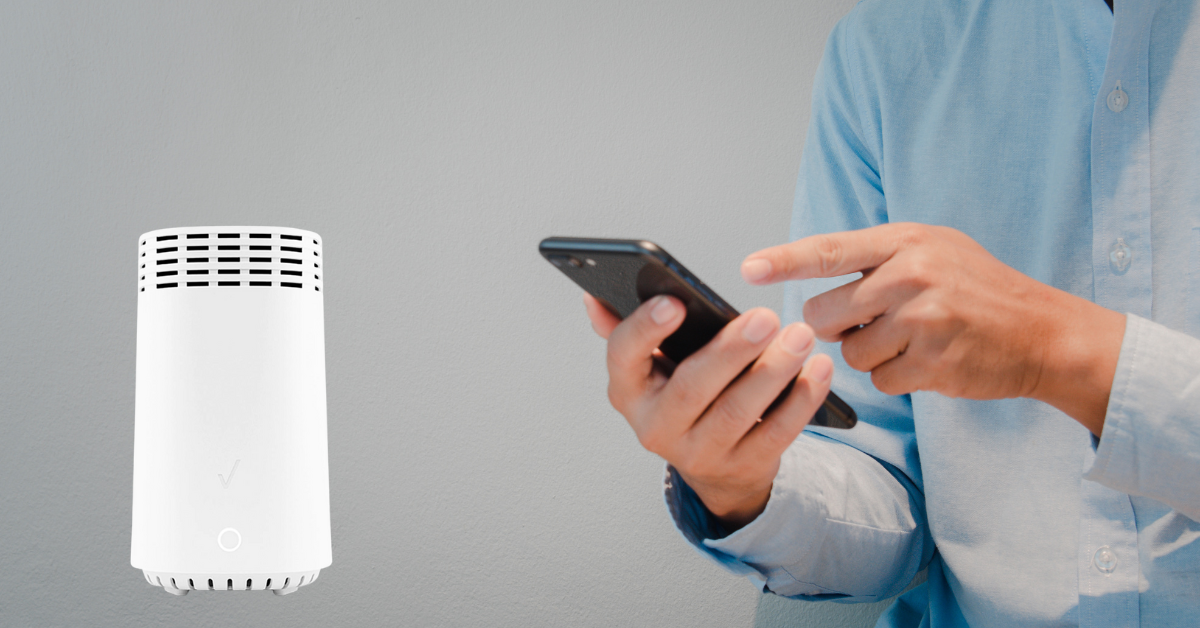
Setting up a Verizon Fios router comes down to three cables, one light, and a short activation screen. The part that trips people up is that Fios is fiber, so there is no modem in the box. Your router plugs into a small wall-mounted box called the ONT, and once the light on the front of the router turns solid white, you are most of the way there. This guide walks through every step for the current Verizon Router (CR1000A and CR1000B), the Fios Router (G3100), and the older Fios Quantum Gateway (G1100), checked against Verizon's own setup instructions, with plain-language fixes for the problems that come up most.
Key Takeaways
- Fios does not use a modem. The router's WAN port connects with an Ethernet cable to the ONT (the fiber box Verizon installed), and the coax cable is only needed if you have Fios TV.
- Give the router up to 10 to 15 minutes after you plug it in. The front light blinks white while it boots and updates, then turns solid white when it is ready. Yellow means no internet, red means a hardware problem.
- The default WiFi name, WiFi password, and settings-page password are all printed on the label on the back of the router. One WiFi name covers every band.
- Activation happens in a browser. Connect a device, open any website, and follow the prompts, or go to activate.verizon.com. The My Fios app was folded into the My Verizon app in late 2023, so that is the app to use now.
- Change your WiFi name and password at mynetworksettings.com (or 192.168.1.1) using the Network Settings Password from the label. If you are on WiFi when you save, you will be disconnected and need to rejoin with the new details.
Which Fios Router Do You Have?
Verizon has shipped three generations of router, and the setup steps are the same for all of them. The differences are in the ports on the back, the WiFi standard, and how you read the lights. Check the label on the back of your router for the model number.
| Router | Model | WiFi | Ports on the back | Status light |
|---|---|---|---|---|
| Verizon Router | CR1000A, CR1000B | WiFi 6E (2.4, 5, and 6 GHz) | 10 Gbps WAN, one 10 Gbps LAN, two 2.5 Gbps LAN, coax, USB-C | Single color-changing light, top left of the front panel |
| Fios Router | G3100 | Tri-band WiFi 6 | Gigabit WAN, four gigabit LAN, coax | Single color-changing light on the front |
| Fios Quantum Gateway | G1100 | Dual-band WiFi 5 (AC1750) | Gigabit WAN, four gigabit LAN, coax | Separate power and globe (internet) lights |
If you are replacing a rented unit with your own, we carry the refurbished Verizon Fios G3100 and G1100 Quantum Gateway, and the G3100 has its own model-specific setup guide that goes deeper on bridge mode and MoCA. If you want to use a non-Verizon router instead, skip ahead to the section on using your own router.
What You Need Before You Start
Open the box and check that you have the router, its power adapter, and an Ethernet cable. Self-install kits usually include a coax cable too; you only need it for Fios TV. Then gather:
- Your Verizon order number and ZIP code, or your My Verizon login, for the activation screen.
- A phone, tablet, or laptop to connect to the router.
- A clear view of the ONT. It is a white or black box, often inside a grey case, mounted on a wall in a garage, basement, utility closet, or near where utilities enter the house. Its power light should be on. If it is dark, check that its power brick is plugged into a working outlet that is not controlled by a wall switch.
If you are replacing an older router, Verizon's instructions are to disconnect it completely, along with any WiFi extenders tied to it, before you plug in the new one. Old power supplies do not carry over.
Connect the Cables
Verizon lists these in the same order on every model, and the order matters: cables first, power last.
- Coax (Fios TV only). If you have Fios TV, screw the coax cable from the router's coax port to the coax wall outlet. If the outlet is already used by a set-top box, use a splitter. If you only have Fios internet, leave the coax port empty. The coax port is for Verizon equipment only and should never be connected to cable-company wiring.
- Ethernet from the ONT to the WAN port. Plug one end of the Ethernet cable into the Ethernet port on the ONT (or the Ethernet wall jack the technician wired from it) and the other end into the port marked WAN on the router. Not a LAN port. On the CR1000A the WAN port is the 10 Gbps port; on the G3100 and G1100 it is the single port set apart from the four LAN ports.
- Power. Connect the power adapter to the router, then plug it into a wall outlet.
One situation to know about: older Fios installs sometimes fed the router over coax instead of Ethernet, with the ONT's Ethernet port switched off. If the ONT has an Ethernet port but you get no connection through it, call Verizon at 1-800-837-4966 and ask them to enable the Ethernet port on the ONT. There is no charge. Our Fios activation guide covers the ONT side in more detail.
Power On and Watch the Light
This is the step where patience pays off. Verizon says the router can take up to 10 minutes (older guides say 15) to boot and install any updates the first time. The front light blinks white during that time. Do not unplug it mid-blink; a fast white blink means a firmware update is being written. When the light settles to solid white, the router is online and ready.
Here is what the single status light means on the Verizon Router and Fios Router, taken from Verizon's own chart:
| Light | What it means | What to do |
|---|---|---|
| Solid white | Normal. Connected to the internet. | Nothing. Move on to connecting devices. |
| Blinking white | Booting, restarting, or installing a firmware update. | Wait. Give it the full 10 minutes before you do anything else. |
| Slow blinking blue | WPS pairing mode (you pressed the WPS button). | Press the WPS button on the device you are adding within two minutes. |
| Fast blinking blue | A device paired successfully. | Nothing. It returns to white on its own. |
| Solid green | WiFi has been turned off in the settings. | Turn WiFi back on from the settings page or the My Verizon app. |
| Solid yellow | Powered on but no internet connection. | Check the Ethernet cable is in the WAN port and the ONT is powered. See troubleshooting below. |
| Blinking red | Hardware fault, overheating, update error, or a failed WPS attempt. | A two-minute red blink after WPS clears itself. Otherwise make sure the router is upright with airflow, restart it, and call Verizon if it stays red. |
| Off | No power, or the light was dimmed in settings. | Check the power adapter and outlet. If the internet works, the light may just be set to off. |
The older G1100 Quantum Gateway uses separate lights instead. Its power light should be white or green; red means a problem with the unit. The globe light is the internet light: white means connected, flashing red means no connection, and the fix is the same as for a yellow light on the newer routers.
The small lights on the back next to the Ethernet ports go dark after a few minutes with no traffic. That is by design, not a sign that the port stopped working.
Connect Your Devices
You can connect with a cable or over WiFi. For the activation step that comes next, either works.
Wired: plug an Ethernet cable into any LAN port on the router and the other end into your computer. On the G3100 and G1100 the LAN ports are yellow.
WiFi: flip the router over or look at the back for the label. It lists the WiFi name (SSID) and the WiFi password. On your phone or laptop, open the WiFi settings, pick that network name, and type the password exactly as printed, including capitals. The label also has a QR code; on most phones you can point the camera at it and tap the prompt to join without typing anything.
All three routers broadcast one WiFi name that covers both the 2.4 GHz and 5 GHz bands. Verizon calls this Self-Organizing Network, and it means your devices move between bands on their own. You do not need to pick a band, and you will not see two networks to choose from unless you split them later in settings.
WPS: for printers and other devices with a WPS button, hold the WPS button on the back of the router for more than two seconds until the front light slowly blinks blue, then press the WPS button on the device within two minutes. The router light flashes blue quickly when it pairs and returns to solid white. Note that WPS does not work once WPA3 security is turned on.
Activate Your Fios Service
With a device connected to the router, open a web browser and try to load any website. On a new Fios account you will be redirected to Verizon's activation page instead of the site you typed. Follow the prompts; you will be asked for your order number and ZIP code or your My Verizon login, and the whole thing takes a few minutes.
If the redirect does not appear, go straight to activate.verizon.com. You can also activate from the My Verizon app on your phone after joining the router's WiFi. If you have an older guide or sticker telling you to download the My Fios app, that app was retired at the end of November 2023 and its functions moved into the My Verizon app, which signs in with the same Fios user ID and password.
When activation finishes, open a new tab and load a website. If it comes up, you are online. If you ordered Fios TV, set up the set-top boxes now by connecting each one to a coax outlet and your TV and following the on-screen prompts with the Fios remote.
Change Your WiFi Name and Password
The factory WiFi password is random and secure, but it is long and hard to read out to guests. Most people change the network name and password once, right after setup. These steps are for the Verizon Router and Fios Router; the G1100 is covered just below.
- On a device connected to the router, open a browser and go to mynetworksettings.com. If that does not load, type https://192.168.1.1 in the address bar.
- Your browser may warn that the connection is not private. That is because the router uses a self-signed certificate on your home network. Click Advanced, then Proceed to 192.168.1.1. This is safe on your own router.
- At the login screen, enter the Network Settings Password printed on the router label (not the WiFi password; they are different) and click Continue.
- The first time you log in, an Easy Setup Wizard opens on the Change Wi-Fi name screen. Type a new network name and a new password. Verizon pre-sets WPA2 security, which works with the widest range of devices.
- If you want a guest network for visitors, toggle it on here. It gets its own name and password and is walled off from your main devices.
- On the Verizon Router, you can also toggle the 6 GHz band on. Verizon notes this switches the whole network to WPA2/WPA3 mixed security and creates a separate IoT network for older smart-home gadgets that do not support WPA3. Leave it off unless you own WiFi 6E or WiFi 7 devices.
- Click Continue, review the summary, and click Apply. If you are on WiFi, your device will drop off the moment the change saves. Open WiFi settings, pick the new name, and enter the new password.
Later changes live under Wi-Fi, then Primary Network in the same settings page. If you prefer the app, the My Verizon app has a Manage WiFi screen that edits the same fields. Our general guide on changing your WiFi password covers what makes a good one and how to get every device back online afterward.
On the G1100 Quantum Gateway
Go to 192.168.1.1, sign in with the username admin and the password on the label (it may be called the admin password or administrator password), then open Wireless Settings, then Basic Security Settings. Change the SSID and the WPA2 key for each band and click Apply. The G1100 shows the 2.4 GHz and 5 GHz bands separately; giving them the same name and password keeps things simple.
A Few Settings Worth a Minute
None of these are required, and Verizon's defaults are sensible. These are the ones that pay off for a typical household.
- Change the settings-page password. The label password works until the router is reset, but anyone who can see the back of the router can read it. On the Verizon Router and G3100 it is under Advanced, then System, then System Settings, in the User Settings section.
- Leave remote administration off. It is off by default. Turning it on exposes the settings page to the internet, which is the opposite of what you want for a home router.
- Leave the WiFi channel on Auto. If WiFi feels slow later, the Verizon Router and G3100 have a Radio Management page under Advanced, then Wi-Fi, with a Scan button that scores how crowded each channel is. That is the time to pick one by hand, not during setup.
- Parental controls. Under Devices, then Parental Controls, you can block internet access for a specific device on a schedule, which is handier than it sounds for kids' tablets.
- Firmware takes care of itself. Verizon pushes updates to its routers automatically. There is no update button to hunt for. If the light blinks white on its own some night, that is an update installing.
Where to Put the Router
Verizon designed these routers to stand upright and does not recommend wall mounting them. The ONT is usually in a closet or basement, which is the worst spot for WiFi, so if the Ethernet cable reaches, move the router toward the center of the house, up on a shelf or table rather than on the floor, and away from the microwave, the TV cabinet, and anything large and metal. A longer Ethernet cable from the ONT is a cheap fix for weak WiFi in the rooms that matter.
If one router cannot cover the whole house, Verizon's Wi-Fi Extender Mini pairs by holding the pair button on the router and the extender until both blink blue, then moving the extender to a spot between the router and the dead zone. A mesh system is the other route, and we cover the trade-offs in our mesh setup guide.
Using Your Own Router With Fios
Any router with an Ethernet WAN port works with Fios internet. You do not need a modem or a modem-router combo, and you do not need to call Verizon to add a MAC address. Plug the ONT into your router's WAN port, power it on, and set it up with its own app or web page. If the ONT was previously feeding a Verizon router over coax, call Verizon to have the ONT's Ethernet port turned on first.
Two caveats. If you have Fios TV with Fios set-top boxes, the TV guide and on-demand features depend on the Verizon router's coax connection, so Verizon requires keeping its router as the primary router in that case. And Verizon does not provide support for third-party routers, so if something goes wrong you are troubleshooting with the router maker, not Verizon. Our guide on whether you need a modem for fiber explains the ONT in more depth, and the bridge mode guide covers running your own router behind a Verizon one.
Troubleshooting Fios Router Setup
The light stays yellow (or the G1100 globe flashes red)
The router is on but cannot reach Verizon. Work through these in order:
- Confirm the Ethernet cable from the ONT is in the port marked WAN, not one of the LAN ports. This is the most common mistake.
- Check the ONT. Its power light should be on. If the ONT is dark, fix its power first; the router cannot do anything without it.
- Power cycle. Verizon's own procedure is to unplug the router's power, wait two full minutes, plug it back in, and then wait another three to five minutes before judging the light.
- If your service start date has not arrived, activation can fail even with everything connected correctly. Check your order status in My Verizon.
- Still yellow? Call Verizon at 1-800-837-4966. Have your order number ready.
The light stays blinking white for more than 15 minutes
Give it the full 15 minutes first, since a first-time firmware update can run long. After that, unplug the router for 30 seconds and plug it back in. If it never settles, the Ethernet cable may be damaged; try a different one.
The light is red
A red blink for exactly two minutes after you pressed WPS is only a failed pairing and clears on its own. Any other red means the router has detected a hardware fault or is overheating. Make sure it is standing upright with open space around it and not inside a cabinet, then restart it. If red comes back, the unit needs to be replaced, and Verizon will swap a rented one.
The activation page never appears
Make sure your device is connected to the new router and not to a neighbor's WiFi or your old network. Try a different browser or a private window, since cached pages can hide the redirect. Then go directly to activate.verizon.com. If you can reach other websites normally, activation may already be complete.
mynetworksettings.com will not load
Type https://192.168.1.1 instead, and accept the certificate warning as described above. If that fails too, your device may still be connected to a different network. If you are on a G1100, the settings page is at 192.168.1.1 only. Our guide to logging into your router covers what to do when no address works.
I changed the WiFi name and now nothing connects
That is expected. Every device was kicked off when the name changed. Go into each device's WiFi settings, forget the old network if it still shows, and join the new name with the new password. Smart TVs, streaming sticks, and smart-home devices do not prompt you; each one has to be reconnected from its own settings menu.
Everything worked and then it stopped
Start with a simple restart, which fixes most one-off dropouts. If restarting does not help, check the Verizon outage map in the My Verizon app before you dig further. A factory reset is the last resort: on the Verizon Router and G3100, hold the recessed reset button on the back for at least ten seconds (a shorter three-second press only restarts it), then set the router up again from the top of this guide using the label password.
Fix it, don't live with it
Router set up but the WiFi still doesn't reach the back bedroom?
Tested refurbished gear. 90-day warranty and 30-day returns.
What's your WiFi problem?
Frequently Asked Questions
Do I need a modem for Verizon Fios?
No. Fios is fiber, and the ONT that Verizon installed does the job a modem does on cable or DSL. Your router connects to the ONT with an Ethernet cable. If someone says 'Fios modem,' they mean the ONT, the router, or both.
What is the default login for a Fios router?
Everything is on the label on the back of the router. The WiFi name and WiFi password get devices online. The Network Settings Password (on the Verizon Router and G3100) or admin password (on the G1100) opens the settings page at mynetworksettings.com or 192.168.1.1. The two passwords are different, and the settings page does not accept the WiFi password.
Why is my Fios router light yellow?
Solid yellow means the router is powered but has no internet connection. Nine times out of ten the Ethernet cable is in a LAN port instead of the WAN port, or the ONT lost power. Fix the cable, confirm the ONT light is on, and power cycle the router with a two-minute wait.
How long does Fios router setup take?
Plan on 20 to 30 minutes. Most of that is waiting for the router to boot and update, which Verizon says can take up to 10 minutes on current models and 15 on older ones. The activation screen itself takes a few minutes, and changing the WiFi name adds a couple more.
Does the Fios router have one WiFi network or two?
One, by default. Verizon routers broadcast a single name that covers 2.4 GHz and 5 GHz (and 6 GHz on the Verizon Router if you enable it), and devices pick the best band on their own. You can split the bands into separate names in the settings page if a specific device needs to be pinned to 2.4 GHz.
Can I use my own router with Fios?
Yes, for Fios internet. Any router with an Ethernet WAN port plugs straight into the ONT, and you skip the monthly rental fee. If you have Fios TV with Verizon set-top boxes, Verizon requires its own router to stay in place as the main router, though you can still run your own router behind it.
Does the Fios router update its own firmware?
Yes. Verizon pushes updates automatically and the router installs them on its own, usually overnight. There is no manual update option in the settings page. A fast white blink on the front light means an update is installing, so leave it plugged in.
Should I turn on the 6 GHz band on the Verizon Router?
Only if you have devices that can use it, which means WiFi 6E or WiFi 7 phones, laptops, or consoles. Turning it on switches the network to WPA2/WPA3 mixed security and spins up a separate IoT network for older smart-home devices. For a household without 6E hardware it adds complexity without adding speed.


